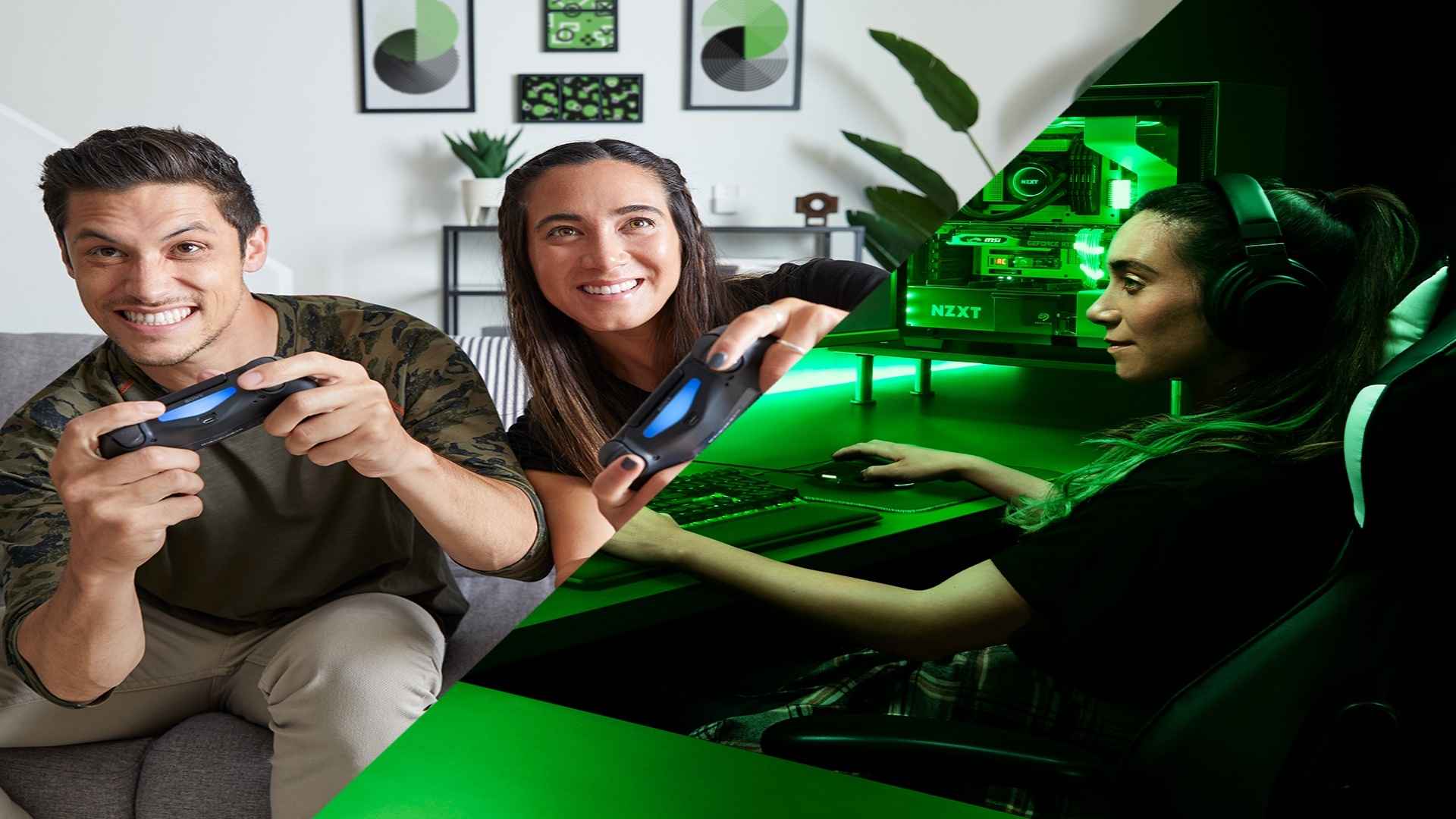
Mobile gaming has reached a level of sophistication where touch controls often fail to provide the precision required for competitive titles. Connecting a PlayStation 4 DualShock 4 controller to your smartphone transforms mobile play into a console-like experience. Whether you stream games via cloud services or play native mobile titles, establishing a wireless gamepad connection is quick and straightforward across both major operating systems.
Preparing Your PS4 Controller for Bluetooth Pairing
Before attempting to connect to any smartphone, you must put your DualShock 4 gamepad into pairing mode. Ensure the controller is powered off so it does not accidentally activate your PlayStation console nearby. Press and hold the PS button and the Share button simultaneously for a few seconds until the light bar begins to pulse rapidly in a white rhythm.
This flashing pattern indicates that the gamepad is actively broadcasting its Bluetooth signal to nearby devices. If the light bar stays solid or turns off, charge your controller fully before trying again. Keeping up with daily gaming news can help you discover which mobile titles fully support hardware controllers for optimal responsiveness.
Connecting the Controller to an Android Device
On your Android phone, swipe down to open the quick settings panel and open the Bluetooth menu. Ensure Bluetooth functionality is turned on, then tap the option to pair a new device or scan for available signals. Look under the available devices list for an entry titled Wireless Controller and select it to initiate the handshake.
Your phone will display a confirmation prompt asking to complete the Bluetooth pair request. Tap to confirm the connection, and the light bar on your DualShock 4 will change from flashing to a steady solid color. You can now use the directional pad and thumbsticks to navigate supported mobile interfaces and launch your favorite games.
Setting Up the Connection on iOS Devices
Connecting your PS4 controller to an iPhone follows a similarly intuitive setup process through Apple's system settings. Open the Settings app on your iPhone, select the Bluetooth menu, and ensure the toggle switch is enabled. With your controller light bar flashing, scroll down to the Other Devices section where the Wireless Controller label will pop up.
Tap the device name to complete the Bluetooth pairing process seamlessly. Once paired, the controller moves to the My Devices section, and the light bar illuminates a solid reddish-pink hue on iOS. Apple devices natively map DualShock 4 inputs across major App Store games and remote play applications without extra software needed.
Troubleshooting Common Input Lag and Drift Issues
While Bluetooth connections are generally reliable, occasional input latency or button unresponsiveness can happen during intense gaming sessions. If you experience severe lag, disconnect other active Bluetooth accessories like wireless earbuds that might compete for wireless bandwidth. Restarting both your smartphone and controller often clears cached connection data that causes input delays.
Additionally, battery levels heavily impact wireless performance and connection stability. Low charge on a DualShock 4 can lead to sporadic disconnects or stick drift behavior while playing on mobile. Keeping your controller charged ensures consistent responsiveness and minimal input latency across all your mobile gaming sessions.